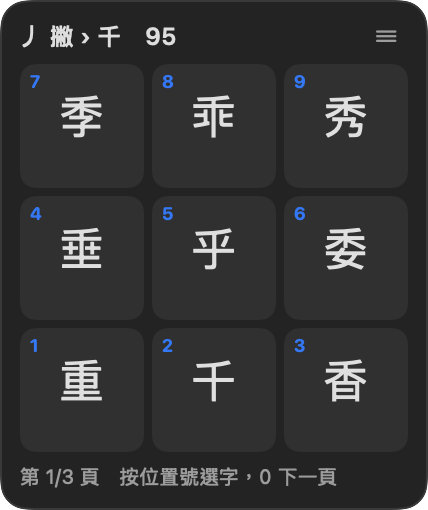
The nine-grid strokes your fingers already know work exactly the same. The big difference: no more staring at a large panel. Like any modern input method, JiuJiu shows a small candidate bar right at your cursor, and it works in every app and game. New to it? Turn on the helper grid whenever you want a hint.
All features free for 7 days · Basic typing free forever · HK$199 one-time purchase
Nine-grid input used to mean keeping a large panel open, often right on top of what you were reading. JiuJiu makes the panel optional: experts hide it and type like with any mainstream input method, while beginners keep it open and learn as they go.
Knowing the basics is enough. One candidate bar, like every mainstream input method, and nothing covering the page.
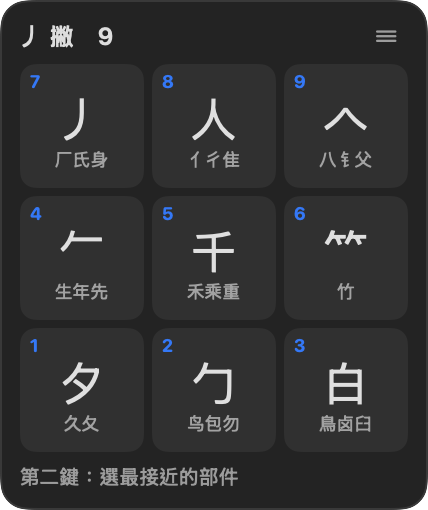
Translucent, out of the way, and clicks pass through. It shows the stroke shape and components for every key.
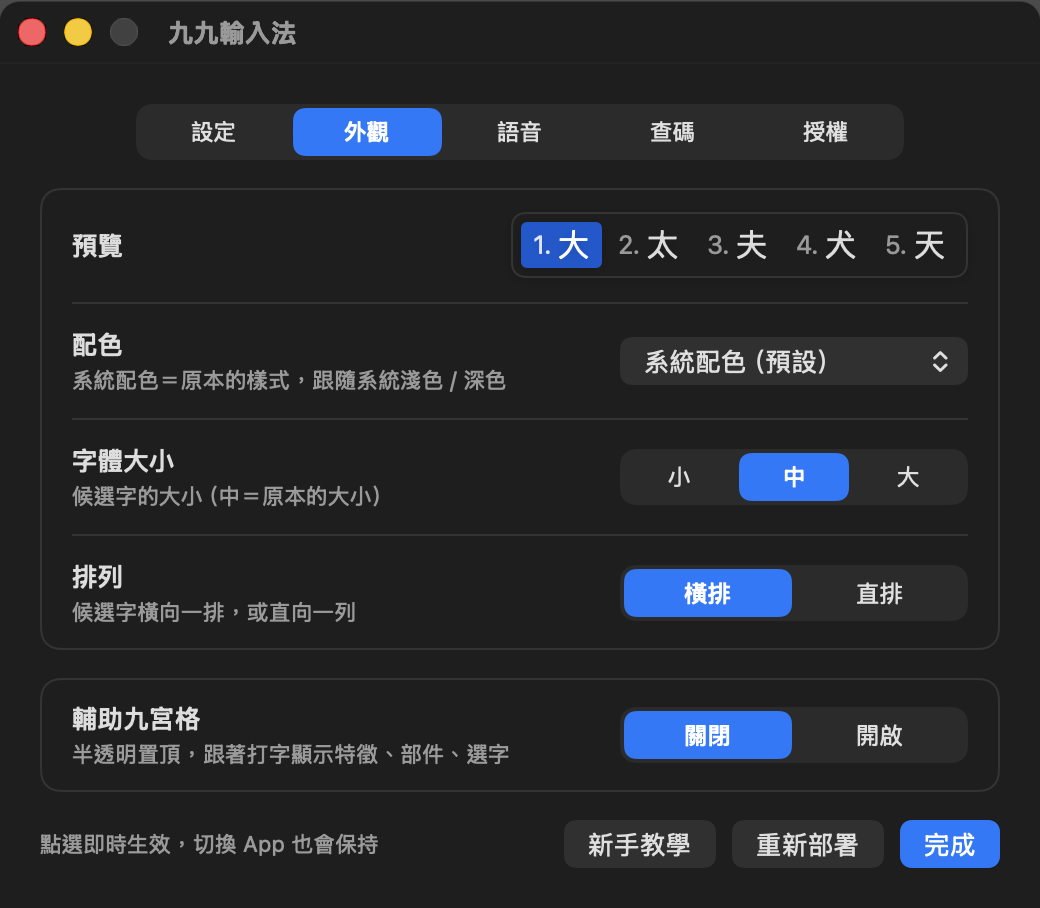
Turn it on or off on the 外觀 (Appearance) page in Settings. Hide it once you’re fluent, and bring it back if you forget.
The nine-grid method is great. The old software just hasn’t kept up. JiuJiu keeps the typing you know and fixes the rest, one by one.
Can’t type in many apps and games, so you keep switching to another input method
A real system input method: type in every app, web page and game
Needs a large panel open to type, and it covers the page
No panel: a small candidate bar at your cursor. Open the helper grid only when you want hints
A dated look you’d rather not show colleagues or clients
Modern design, 20+ colour themes, follows light and dark mode
Poor Mac support, with problems on new Macs and new macOS
Native on Apple silicon and the latest macOS. Windows version coming soon
Renewal fees every few years, forever
HK$199 once, with free updates throughout 1.x
No voice input, and no quick way to look up a character you can’t type
Voice input, plus type the pinyin and it shows you how to type the character
Awkward on a laptop without a numeric keypad
Letter-key mode: 7 8 9 · U I O · J K L become the nine grid
Can’t change the look or the font size
Choose your colours, font size, horizontal or vertical layout
The muscle memory you built over the years works just the same in JiuJiu.
Every character is typed the way you’ve always typed it. Your muscle memory carries straight over.
Candidates are laid out like the numeric keypad, so touch typing is just as fast.
After a character, press 0 to get the likely next one, and keep the sentence flowing.
Press the full stop key for common Chinese punctuation, just like before.
A system-level input method that responds instantly. Your frequent characters move to the front, and predictions are one key away.
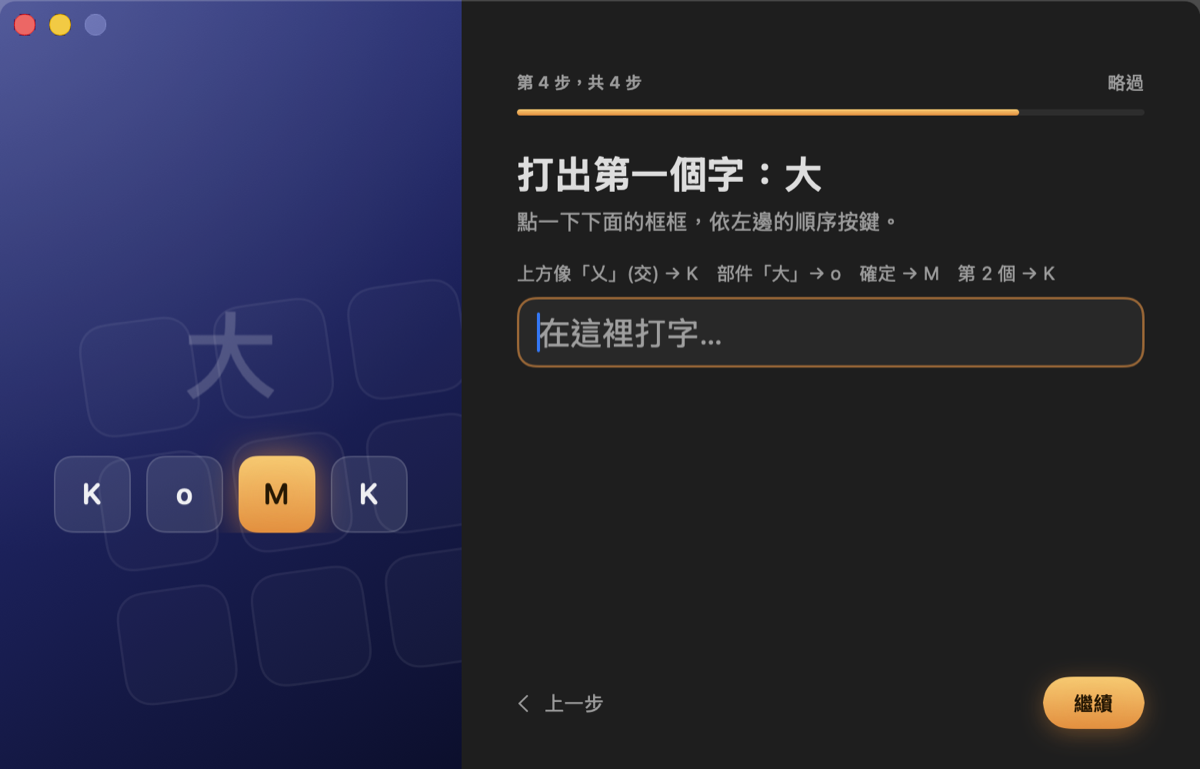
A one-minute welcome guide gets you started, and the translucent helper grid shows what every key means.
A modern interface, 20+ colour themes and light/dark support. Typing that looks as good as it feels.
| Older input methods | ||
|---|---|---|
| Typing method | Nine-grid | The same nine-grid method |
| Typing panel | Large panel must stay open | No panel (helper grid is optional) |
| Works in every app and game | Fails in some | Real system input method |
| Candidate window | Large, blocks your view | One small bar at the cursor |
| Custom appearance | No | 20+ themes, font size, layout |
| Mac support | Limited | Built for Mac, native on Apple silicon |
| Voice input | None | Cantonese / Mandarin |
| Characters you can’t type | Look them up yourself | Type pinyin, see the keys |
| Onboarding | None | Welcome guide + helper grid |
| Laptops (no numeric keypad) | Inconvenient | Letter-key mode |
| Price | Subscription, renew every few years | HK$199, one-time purchase |
Details about older input methods reflect typical user experience and may vary between products.
Nine number keys stand for nine stroke shapes. You type by what a character looks like, with no pinyin needed.
Press the key for the stroke shape at the top (or top left) of the character. The top of 香 is 丿, a left-falling stroke → 9.
Each stroke shape has nine components. Pick the closest one. The upper part of 香 is 千 → 5.
Press 0 to confirm, then the position number of your character. 香 is the fourth candidate → 4.
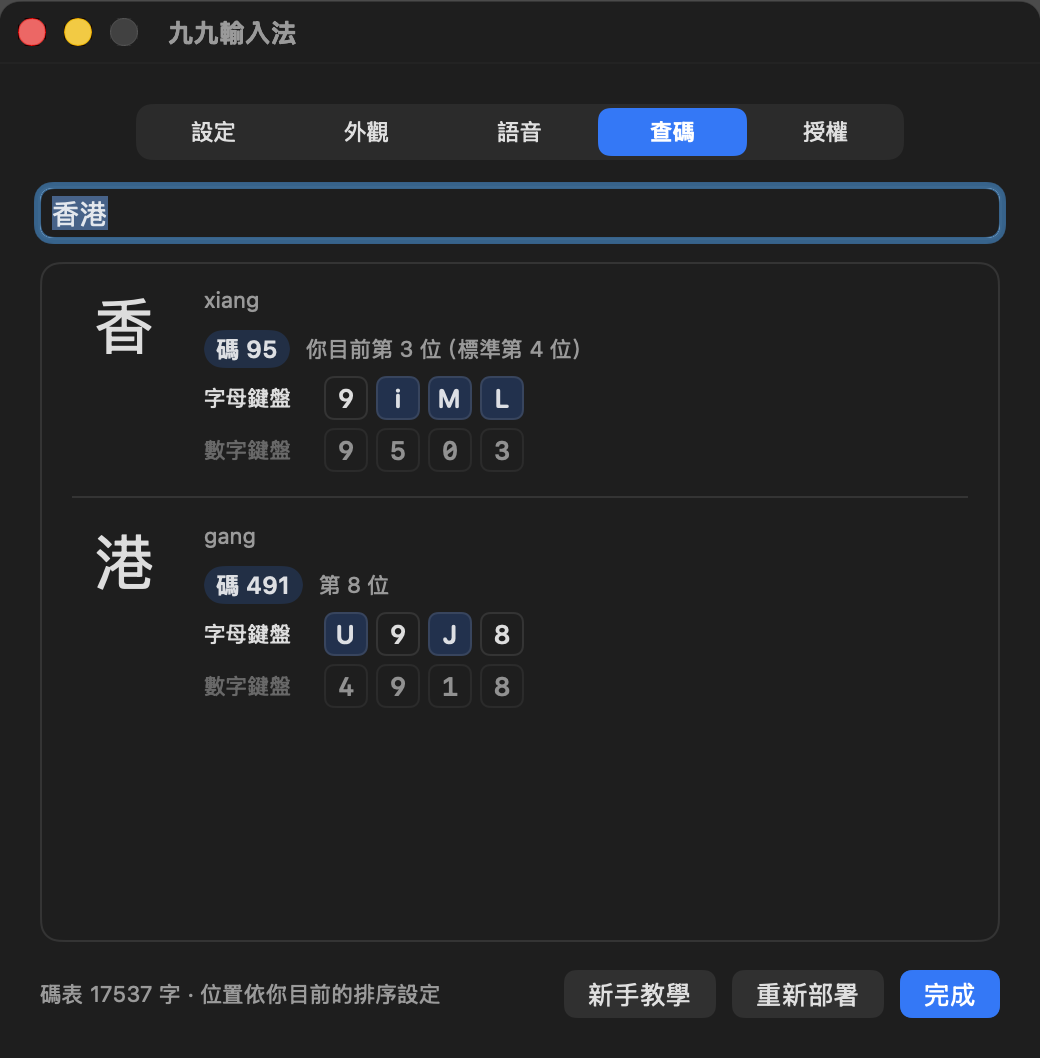
香 = 9504 港 = 4918
See the full component chart →
On or off, your choice. Beginners keep it open to see stroke shapes, components and candidates as they type. Experts hide it with one click. Translucent, and clicks pass straight through.
Press a shortcut and speak. Supports Cantonese, Taiwanese Mandarin and Mainland Mandarin. On macOS 26 or later, recognition runs on your Mac and nothing is uploaded. Voice support on Windows will be announced at launch.
Don’t know how to type a character? Press ` and type its pinyin. Each candidate shows its JiuJiu keys, so you learn as you go.
Look up the code, position and fastest keys for any character. Learning mode shows the keys next to predicted characters.
Candidates are shown in Traditional for easy reading. Output Traditional or Simplified, and your choice is remembered.
Use the numeric keypad on an external keyboard, or letter-key mode on a laptop. Frequent characters move to the front automatically.


Screenshots show the Mac version. The app’s own interface is currently in Chinese.
Try every feature free for 7 days, then decide. Priced in Hong Kong dollars; your local currency is shown at checkout.
Free forever
Each licence works on 3 computers
We’re making the final preparations and downloads will open soon. To be notified at launch, email support@99input.com.
macOS 15 or later · Apple silicon and Intel Macs
Coming soonWindows 10 / 11 (64-bit) · Coming soon
Stay tunedWorks on Macs with Apple silicon (M series) or Intel processors that can run macOS 15 or later:
To check: Apple menu (top left) → About This Mac.
Voice input: on macOS 26 or later, recognition runs on your Mac with no internet needed. On macOS 15 it uses Apple’s speech recognition service and needs an internet connection.
Supported languages and details for voice input on Windows will be announced at launch.
No. JiuJiu uses the nine-grid method you know. Every character is typed the same way, so your muscle memory carries straight over.
No. Once you know the basics, you can hide the panel completely. Like any mainstream input method, JiuJiu shows only a small candidate bar at your cursor. When you want hints, turn on the helper grid on the 外觀 (Appearance) page in Settings.
No. JiuJiu is a brand-new input method. The software is newly designed and newly built, while the typing method is the nine-grid one people already know.
Yes. JiuJiu supports both Apple silicon and Intel Macs, as long as they can run macOS 15 or later. That is roughly Macs from 2018 onwards (MacBook Air 2020 or later, MacBook Pro 2018 or later, iMac 2019 or later, Mac mini 2018 or later). Open the Apple menu (top left) → About This Mac to check your model and macOS version.
JiuJiu is a real system input method. The Mac version uses the same mechanism as Apple’s built-in input methods, and the Windows version uses the standard Windows input framework (TSF). So it works wherever you can type text, including web pages, chat apps, office software and text fields in games.
Yes. The helper grid shows the stroke shape and components for each key as you type. For a character you can’t type, press ` and look it up by pinyin, and JiuJiu shows its keys next to it. Most people can type common characters within a few days.
Basic typing, prediction, punctuation, Traditional/Simplified output, frequency learning and the helper grid stay free forever. Voice input, colour themes, code lookup, pinyin lookup and learning mode need Pro.
Each licence key can be active on up to 3 computers at once. When you change computers, open Settings → 授權 (Licence) on the old one and click 解除這台 (Deactivate this computer) to free up the seat.
Yes. Within 14 days of purchase you can ask for a full refund for any reason. Just email support@99input.com with your order number. We recommend using the 7-day free trial first to make sure JiuJiu suits you.
No. Typing, frequency data and speech recognition are all processed on your computer and are never uploaded. Only when you activate a licence, and when it is checked periodically, are your licence key and a device code that cannot be traced back to you sent to the licensing server.
Mac: go to System Settings → Privacy & Security, scroll to the bottom and click “Open Anyway”. The final release will be notarised by Apple, so this prompt will no longer appear. Windows: if you see “Windows protected your PC”, click “More info” → “Run anyway”.
The Windows version is in development and will support Windows 10 and 11. The typing method, character codes, predictions, settings, helper grid and code lookup are the same as on Mac. One licence key covers 3 computers in total across Mac and Windows, so there is no need to buy again.
The typing method, character codes, predictions, frequency learning, Traditional/Simplified output, helper grid, code lookup and licensing are identical. Only the system conventions differ: you switch input methods with Control + Space on Mac and Windows key + Space on Windows; Settings is in the input menu in the menu bar on Mac and under the JiuJiu icon in the taskbar on Windows; and installing on Windows needs administrator rights. The default voice input shortcut and the languages supported on Windows will be announced at launch.